CSS Gradient Generator: Create Linear, Radial & Conic Gradients
CSS gradients are one of the easiest ways to add depth, color, and visual interest to a website without creating a separate image file. With the right CSS syntax, you can create smooth backgrounds, buttons, cards, hero sections, overlays, borders, and many other effects directly in your stylesheet.
But writing gradient syntax by hand can become tedious when you need to experiment with several colors, color-stop positions, or angles.
That is where a CSS gradient generator can help.
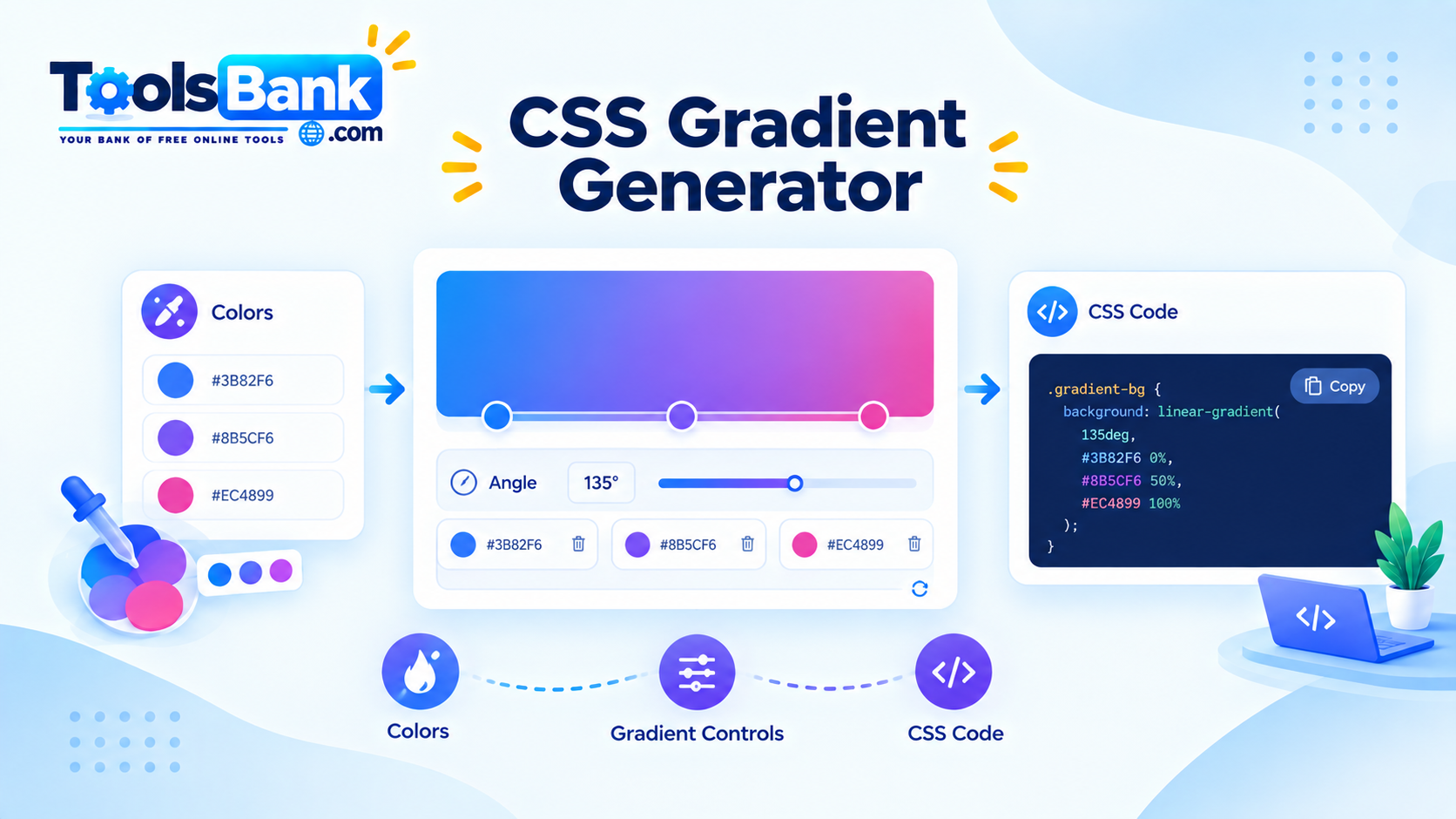
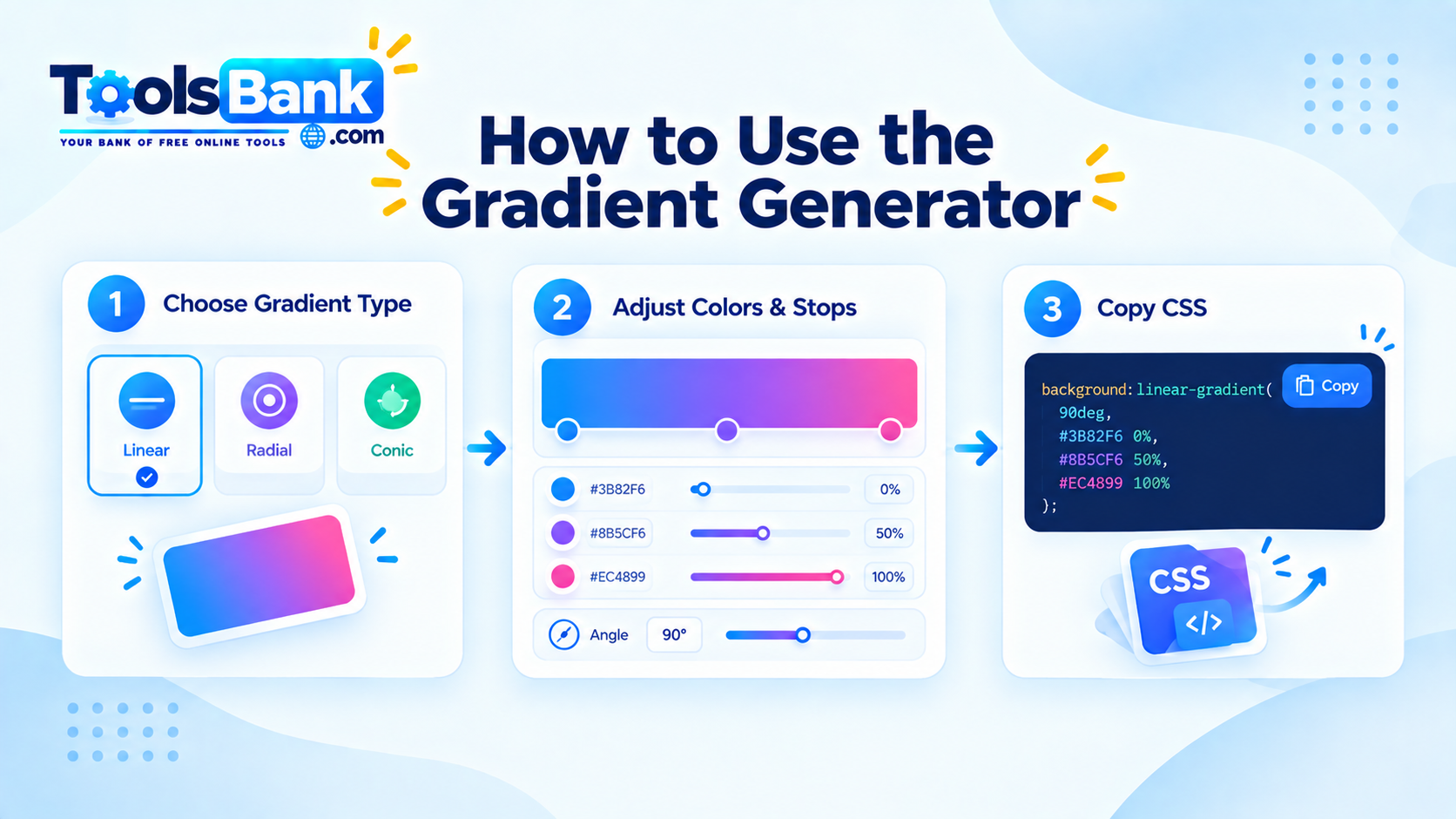
The ToolsBank Gradient Generator lets you build custom gradients in your browser, choose between linear, radial, and conic styles, add up to six color stops, adjust their positions, and copy the resulting CSS.
What Is a CSS Gradient?
A CSS gradient is a smooth transition between two or more colors. Unlike a traditional image background, a CSS gradient is generated by the browser using CSS.
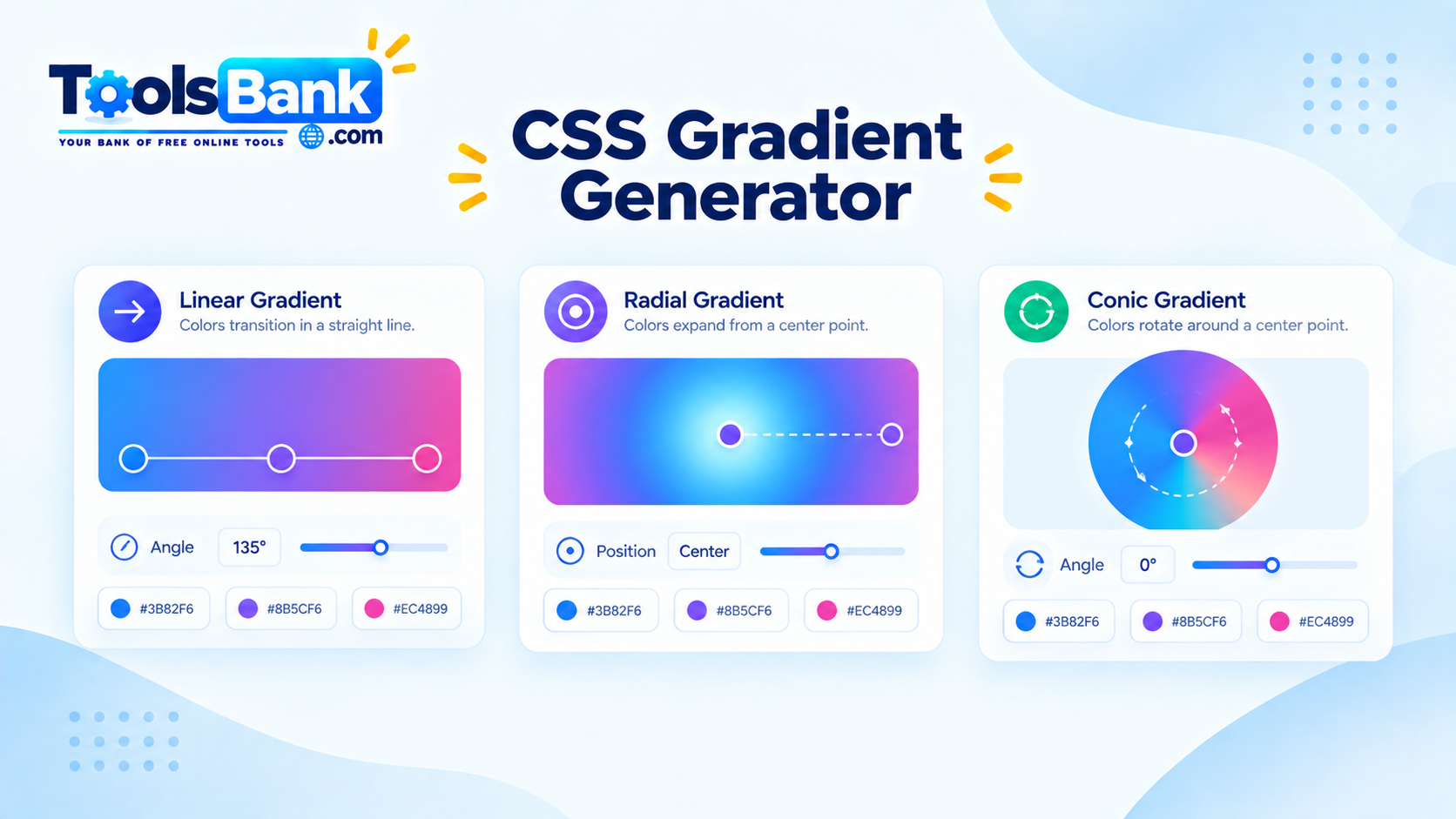
The main gradient types are:
- Linear gradients — colors transition along a straight line.
- Radial gradients — colors spread outward from a central point.
- Conic gradients — colors rotate around a central point.
CSS also provides repeating versions of these gradient functions for patterns and repeated color transitions.
A simple linear gradient looks like this:
background: linear-gradient(blue, purple);The browser creates the transition between the two colors, so there is no need to create a background image for this effect.
What Can You Create With a CSS Gradient Generator?
A gradient generator is useful when you want to experiment visually rather than manually guess CSS values.
With the ToolsBank Gradient Generator, you can:
- Choose a linear, radial, or conic gradient
- Add up to six color stops
- Position individual color stops
- Adjust the gradient angle where applicable
- Preview the result while editing
- Generate CSS automatically
- Copy the resulting CSS into your project
The tool's generated CSS updates as you change the colors and settings.
This makes it useful for designers and developers who want to test several combinations quickly.
Linear vs. Radial vs. Conic Gradients
Choosing the right gradient type depends on the visual effect you want.
Linear Gradients
A linear gradient transitions between colors along a straight line.
For example:
background: linear-gradient(to right, #4facfe, #00f2fe);You can change the direction using keywords such as to right or to bottom right, or specify an angle.
background: linear-gradient(70deg, #4facfe, #00f2fe);According to MDN, linear gradients can use angles to control the direction of the transition.
Good uses include:
- Website hero backgrounds
- Buttons
- Navigation elements
- Card backgrounds
- Overlays
- Decorative sections
Radial Gradients
A radial gradient spreads outward from a central point rather than following a straight line.
Example:
background: radial-gradient(circle, #ffffff, #6366f1);Radial gradients can use either circular or elliptical shapes, and the center can be positioned within the element.
They work particularly well for:
- Glowing effects
- Spotlight effects
- Background highlights
- Decorative cards
- Soft visual depth
Conic Gradients
A conic gradient transitions colors around a central point.
background: conic-gradient(red, orange, yellow, green, blue);Unlike a radial gradient, the colors rotate around the center rather than radiating outward. MDN notes that conic gradients are useful for effects such as color wheels and pie-chart-style visuals.
They can be useful for:
- Color wheels
- Circular indicators
- Decorative UI elements
- Circular progress-style designs
- Rotational color effects
Understanding Color Stops
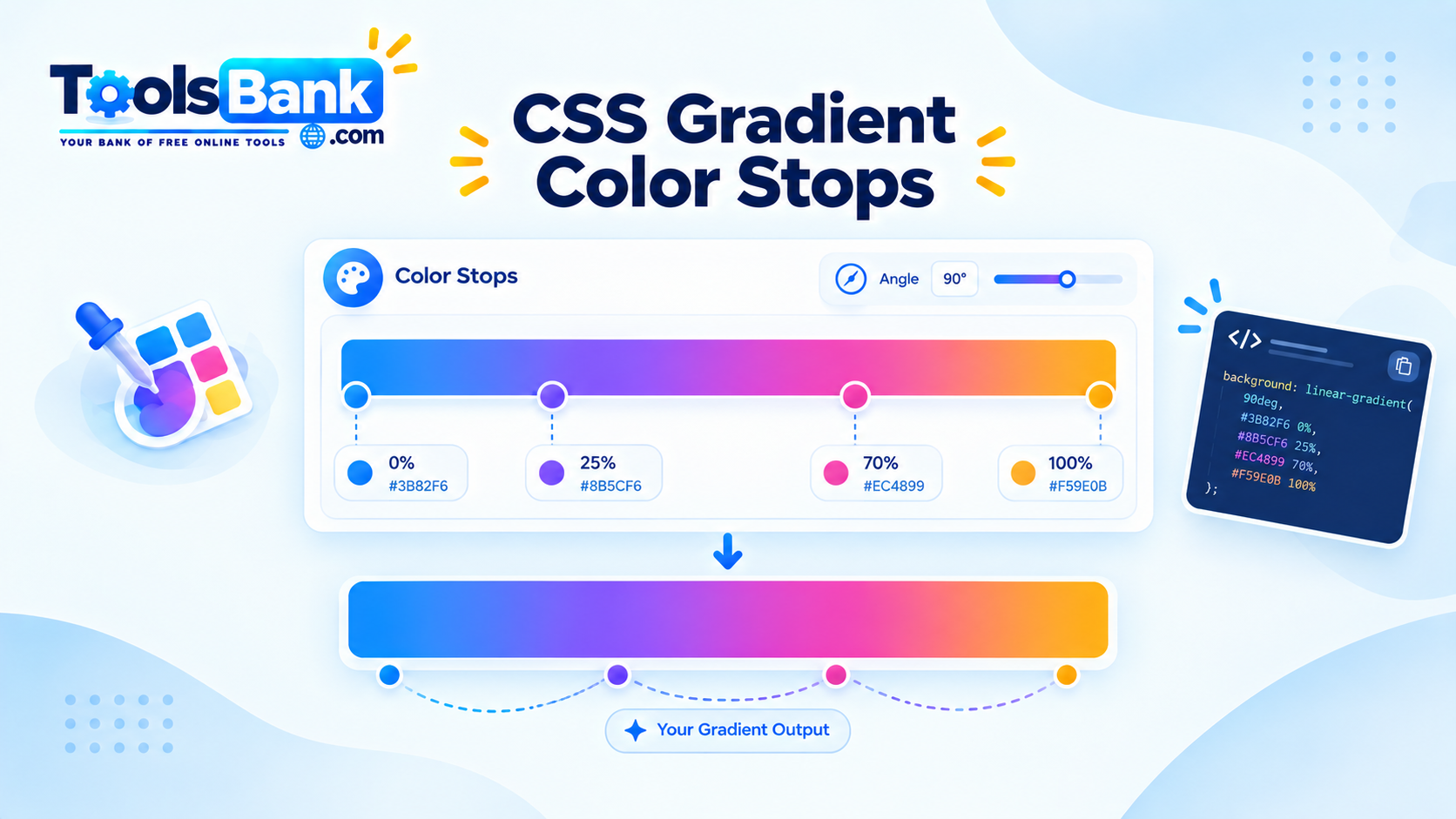
Color stops determine where individual colors appear within a gradient.
For example:
background: linear-gradient(
  to right,
  #ff0000 0%,
  #ffff00 50%,
  #0000ff 100%
);
Here:
- Red starts at 0%.
- Yellow appears at 50%.
- Blue ends at 100%.
You can use additional color stops to create more complex transitions. CSS gradients require at least two colors, but more stops can be added when they improve the design.
The ToolsBank Gradient Generator allows up to six color stops and lets you position them individually.
How to Use the ToolsBank Gradient Generator
Creating a gradient does not require writing the CSS manually.
1. Open the Gradient Generator
Open the ToolsBank Gradient Generator.
2. Choose a Gradient Type
Select the effect you need:
- Linear
- Radial
- Conic
Start with linear if you simply need a directional color transition.
Choose radial for a centered or glowing effect.
Choose conic when the colors need to rotate around a central point.
3. Choose Your Colors
Select the colors that should appear in the gradient.
For a simple design, two or three colors are often enough.
4. Adjust the Color Stops
Move the color stops to control where each color appears.
For example, moving a stop closer to another can create a faster transition between colors, while spreading them apart creates a more gradual change.
5. Adjust the Angle or Position
For gradient types that support directional controls, experiment with the angle or positioning until the result fits your design.
6. Copy the CSS
Once the preview looks right, copy the generated CSS and place it in your stylesheet.
The ToolsBank tool generates copy-ready CSS while you make changes.
CSS Gradient Examples
Here are a few simple examples you can adapt.
Simple Linear Gradient
.hero {
  background: linear-gradient(to right, #2563eb, #7c3aed);
}
Three-Color Linear Gradient
.hero {
  background: linear-gradient(
    90deg,
    #2563eb,
    #8b5cf6,
    #ec4899
  );
}
Radial Gradient
.card {
  background: radial-gradient(
    circle at center,
    #ffffff,
    #dbeafe,
    #6366f1
  );
}
Conic Gradient
.color-wheel {
  background: conic-gradient(
    red,
    yellow,
    green,
    cyan,
    blue,
    magenta,
    red
  );
}
These examples use standard CSS gradient functions documented by MDN.
Common CSS Gradient Mistakes
Using Too Many Colors
Adding more colors does not automatically make a gradient better.
Too many closely positioned stops can make a design look noisy or muddy.
The ToolsBank Gradient Generator recommends starting with two or three well-placed stops for a smoother effect.
Choosing Colors With Too Much Contrast
Strongly contrasting colors can create an unwanted visual jump.
For backgrounds and UI elements, consider using colors that have a deliberate relationship rather than choosing unrelated colors.
Ignoring the Gradient Direction
A good color combination can still look wrong if the gradient travels in an awkward direction.
Try several angles before deciding on the final version.
Using Conic Gradients Without Testing
Conic gradients are widely supported in modern browsers, but projects with specific browser-support requirements should still be tested in the browsers that matter to their users.
Making the Gradient the Main Focus When It Shouldn't Be
Gradients are usually most effective when they support the content.
For example, a strong gradient behind text should still leave enough contrast for the text to remain readable.
Tips for Better CSS Gradients
Start With Two Colors
Begin with two colors and evaluate the result before adding more.
Use Color Stops Intentionally
Each stop should have a purpose. If moving a stop does not improve the visual result, it may not be necessary.
Consider the Content Over the Gradient
A background should support the content placed on top of it. Always check text contrast and readability.
Test Different Angles
A small change in angle can significantly change how a linear gradient feels.
Use the Right Gradient Type
Think about the visual direction:
- Straight transition → linear
- Center-out effect → radial
- Circular rotation → conic
Choosing the correct gradient function often matters more than adding extra colors.
Why Use a CSS Gradient Generator?
Writing a basic gradient manually is easy:
background: linear-gradient(red, blue);The challenge comes when you start experimenting with multiple stops, positioning, angles, and different gradient types.
A visual generator lets you adjust those values interactively and immediately see the result.
That can reduce trial and error and make it easier to move from a visual idea to usable CSS.
The ToolsBank Gradient Generator is designed specifically for this workflow: create the gradient visually, adjust its settings, and copy the resulting CSS.
Final Takeaway
CSS gradients give developers and designers a flexible way to create colorful backgrounds and interface effects directly with CSS. Linear gradients work along a straight direction, radial gradients spread from a center point, and conic gradients rotate colors around a center.
If you would rather experiment visually than write gradient syntax manually, the ToolsBank Gradient Generator provides a straightforward workflow: choose a gradient type, adjust colors and stops, refine the settings, and copy the generated CSS.
Try the free ToolsBank Gradient Generator when you need a quick way to create a custom CSS gradient.